Phone Storage Space Calculator
Estimate Your Storage Savings
Results
- System updates
- App updates
- Your contacts
- App data for active accounts
- System folders
When your phone says "Storage full," it’s not just an annoyance-it’s a roadblock. You can’t take photos, install updates, or even open some apps. But before you start deleting random stuff, know this: not all files are created equal. Some things you delete won’t hurt a bit. Others? You’ll wish you hadn’t touched them. Here’s exactly what to clear out-and what to leave alone.
Cache Files: The Silent Space Hogs
Every app you use leaves behind cache files. These are temporary pieces of data meant to make loading faster: images from social media, snippets of videos, login tokens, and more. Sounds harmless, right? Except over time, they pile up. A single Instagram or TikTok app can hoard 2-5 GB of cache alone. And most people never clear it.
On Android, go to Settings > Storage > Other Apps, then tap each app and select "Clear Cache." On iPhone, there’s no direct cache cleaner, but you can offload apps (more on that later) or delete and reinstall apps you use often. Don’t worry-your login info and settings usually come back when you reinstall.
Old Photos and Videos: The Real Culprits
Photos and videos eat storage faster than anything else. A single 4K video can take up 400 MB. If you’ve been snapping daily for two years, you’ve got 100+ GB locked away. But you don’t need to delete all of them.
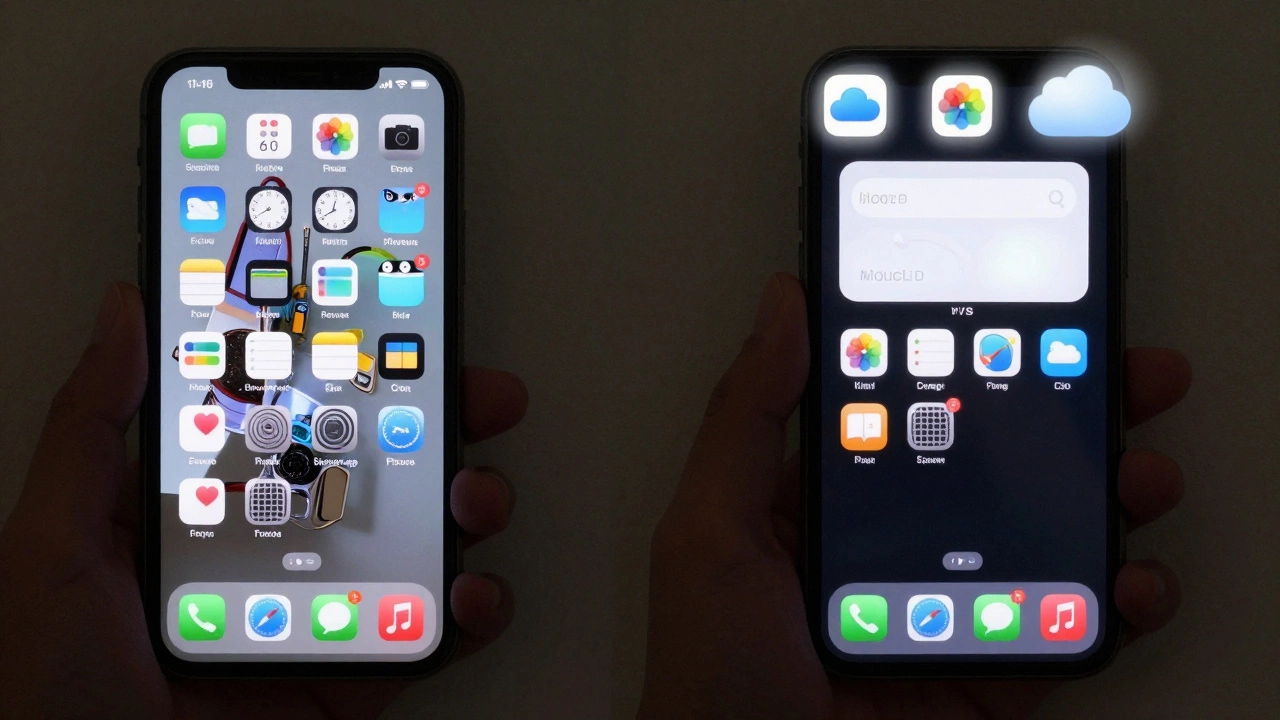
Start with duplicates. Use Google Photos or iCloud to find and delete exact copies. Then look for blurry shots, screenshots of text you no longer need, and videos you watched once and never touched again. Pro tip: If you’ve backed up your full library to the cloud, you can safely delete the originals from your phone. Most cloud services now let you delete local copies while keeping files online.
iPhone users: Go to Photos > Albums > Recently Deleted and empty it. Android users: Use Google Photos’ "Free up space" tool under Settings. It finds photos already uploaded and removes them from your device.
Unused Apps: The Ghosts in Your Home Screen
You downloaded that fitness app in January. Then you downloaded five more. Now you’ve got 17 apps you haven’t opened in six months. Each one takes up 100 MB to 2 GB, especially if it stores data offline (like Spotify playlists or offline maps).
On iPhone, go to Settings > General > iPhone Storage. It shows a list of apps ranked by space used. Tap any app and choose "Offload App." This removes the app but keeps its documents and data. You can reinstall it in seconds from the App Store. On Android, go to Settings > Apps, then tap "Storage" to see usage. Uninstall apps you don’t use-not just hide them.
Downloaded Music and Podcasts
Spotify, Apple Music, YouTube Music-they all let you download songs for offline listening. Same with podcasts. But if you’ve downloaded entire albums or every episode of your favorite show, you’re sitting on 10-30 GB of unused audio.
Go into each app and delete downloads you don’t plan to listen to soon. Spotify’s "Downloaded" section lets you clear all offline tracks at once. Podcast apps usually have a "Clear All Downloads" button. Keep only what you’ll actually listen to this week.
Old Messages and Attachments
iMessage and WhatsApp are storage nightmares. Every photo, video, voice note, and PDF sent over months turns into a hidden archive. A single chat with someone who sends memes daily can eat 5 GB.
On iPhone: Go to Settings > Messages > Keep Messages and set it to 30 days. Then go to Messages > Select a conversation > Details > Attachments and delete large files manually.
On Android: Open WhatsApp > Settings > Data and Storage Usage > Storage Usage. It shows which chats are biggest. Tap "Clear" next to the ones you don’t need. Same for Telegram, Signal, or any messaging app.
App Data and Documents You Don’t Need
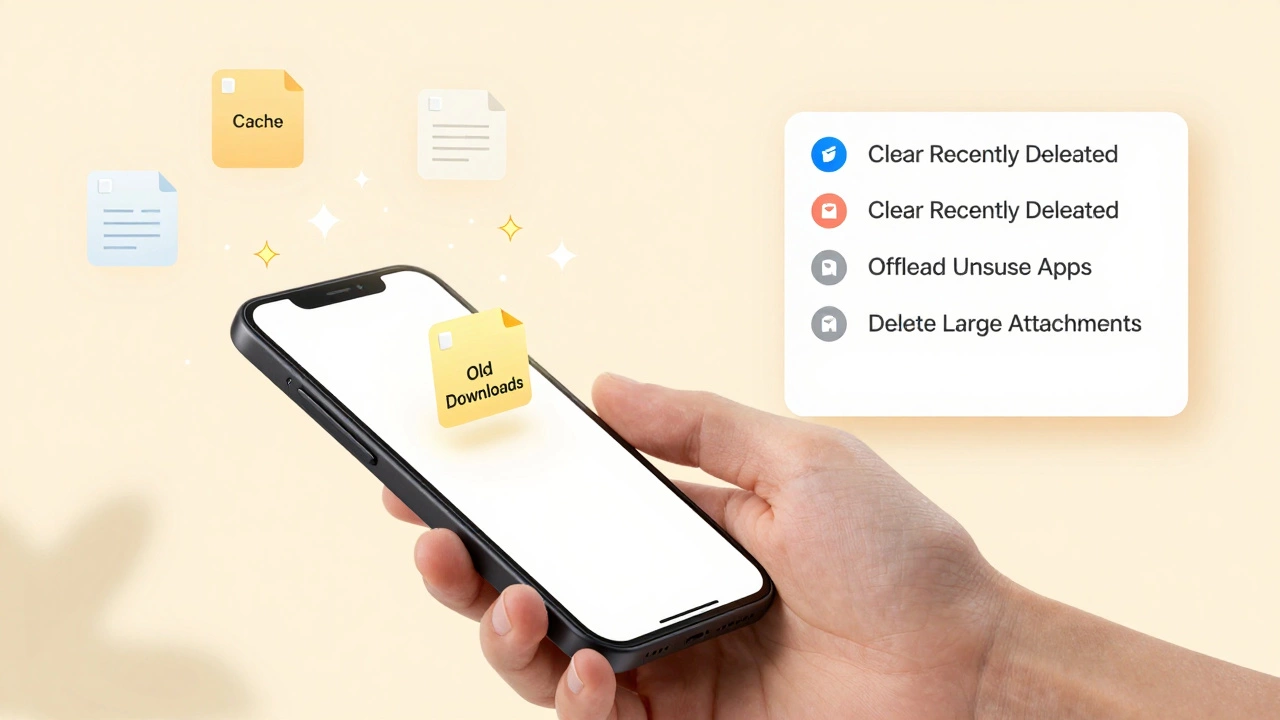
Banking apps store PDF statements. Note-taking apps save PDFs and scans. File managers? They collect random downloads from emails and websites. You probably have 100+ PDFs, receipts, and screenshots buried in folders.
Use your phone’s built-in file manager (Files by Google on Android, Files on iPhone) to sort files by size. Look for:
- PDFs older than 2 years
- Downloaded receipts you’ve already filed
- Screen recordings from old tutorials
- Temporary ZIP files
- Old APK files (Android only)
Move what you need to your computer or cloud storage. Delete the rest.
What NOT to Delete
Don’t touch these unless you’re sure:
- System updates-they’re small and necessary
- App updates-they improve performance and security
- Your contacts-unless they’re backed up elsewhere
- App data for active accounts-like your banking app’s login state
- System folders like /Android/data or /DCIM-deleting these can break apps
If you’re unsure about a folder, don’t touch it. Better to leave it than risk losing something important.
Prevent It From Happening Again
Clearing space once helps-but it’ll fill up again. Here’s how to stop the cycle:
- Turn on automatic cloud backup for photos and videos
- Set your messaging apps to auto-delete old media after 30 days
- Uninstall apps you don’t use within a week
- Use streaming instead of downloading music and videos
- Check storage once a month. Make it a habit like brushing your teeth
Phones aren’t designed to hold everything forever. They’re meant to be dynamic tools. When you treat storage like a closet-clean it out, don’t just shove more in-you’ll never see "Storage Full" again.
Should I delete my text messages to free up space?
Yes-if you have lots of photos, videos, or documents attached to them. A single iMessage thread with 500+ media files can take up 8 GB. Go into your Messages app, pick long-running threads, and delete attachments. You can also set messages to auto-delete after 30 days in Settings.
Is it safe to delete cache files?
Absolutely. Cache files are temporary and get rebuilt when you use the app again. Clearing them won’t log you out or delete your data. It’s one of the safest ways to free up space fast. Apps like Instagram, TikTok, and YouTube rebuild cache in seconds after you open them.
Can I delete system files to get more space?
No. System files are essential for your phone to function. Trying to delete them can crash your device or cause apps to stop working. If you’re low on space, focus on user data-apps, photos, downloads-not system folders. Your phone already uses the bare minimum for its core functions.
Why does my storage still say full after I deleted files?
Because some files aren’t gone yet. On iPhone, deleted photos go to "Recently Deleted" and stay for 30 days. On Android, some apps store data in hidden folders. Restart your phone after deleting files-it forces the system to refresh storage counts. Also, check if cloud backups are still syncing local copies.
Should I buy more storage or just clean my phone?
Clean first. Most people regain 10-20 GB just by deleting cache, old media, and unused apps. Upgrading storage costs $50-$200 and doesn’t fix the habit. If you’re still full after cleaning, then consider cloud backup or a new phone. But 9 out of 10 times, cleaning is all you need.